



FastSearch SQLite plugin documentation
In the following steps, we will guide you through the installation and setup process of the module so that you can get it up and running quickly and easily.
After purchasing the plugin, you will receive an email. The mail contains the registration number and the plugin
fastsearch-sqlite-x.x.zip
The plugin is not unpacked and remains in ZIP format.
INSTALLATION
A detailed description of how to install the plugin is also described with images this article.
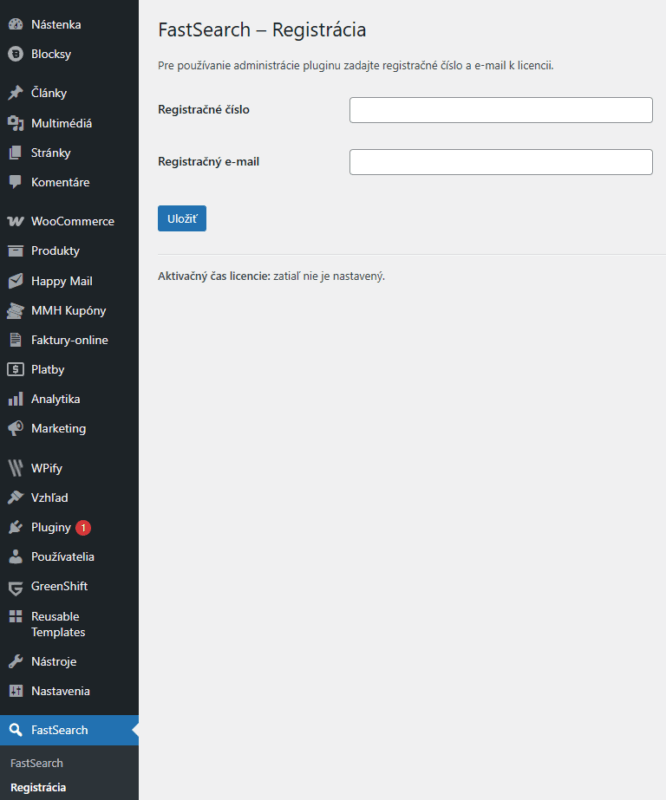
REGISTER
In the confirmation email you received you will find your registration details - license key + license email. These data must be entered after clicking on the FastSearch > Registration plugin.
SETUP
INTEGRATION
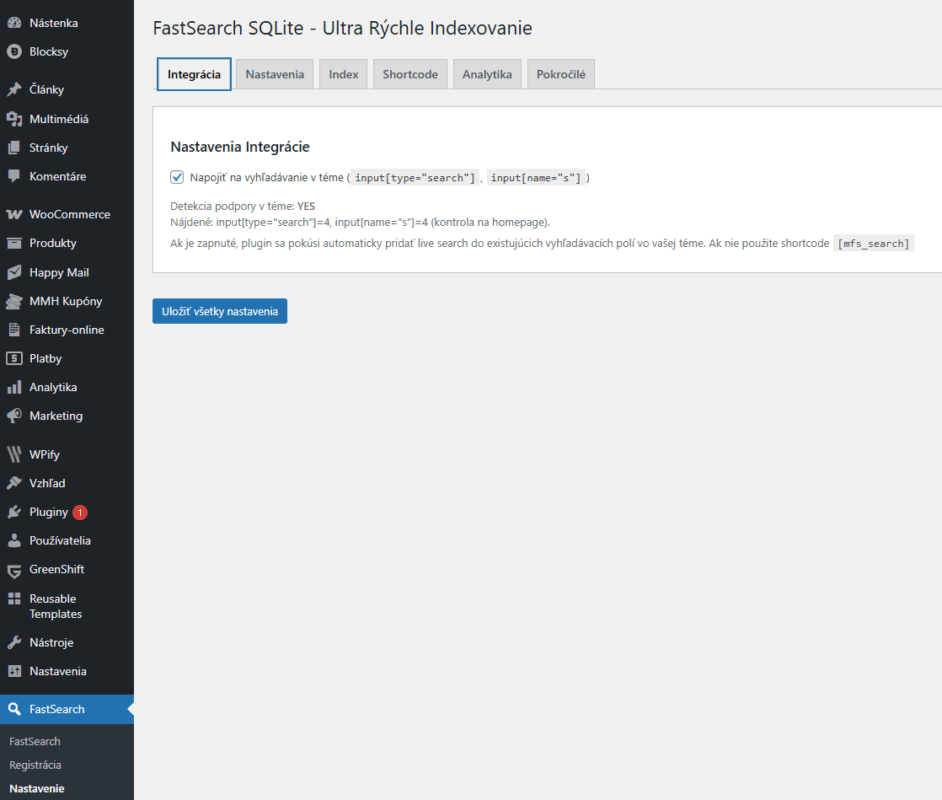
If the plugin detects that your theme supports the search field input type „search“ then it is possible to integrate the search into the theme while preserving the design. If the theme supports the integration the result of the detection will be YES. If the theme does not support integration then it is possible to use shortcode search.
[mfs_search]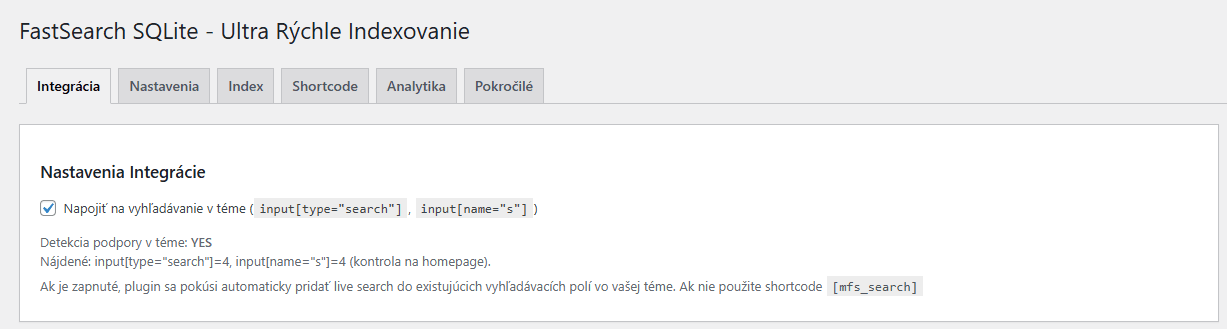
SETTINGS
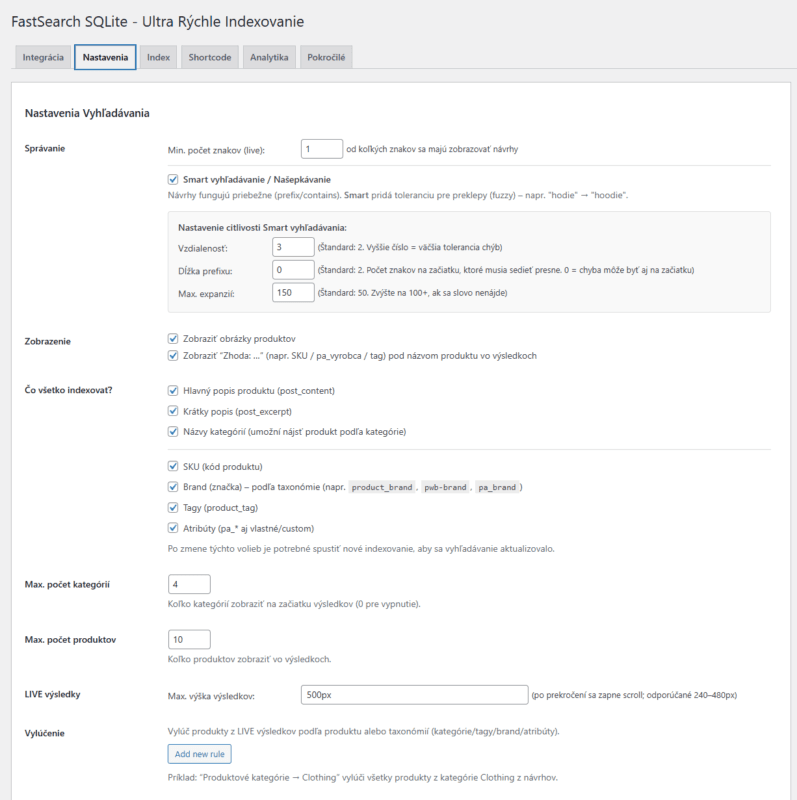
REPORT
Here is the option to turn on intelligent „whispering“ when searching. Below are examples
Smart search - off

Smart search - on
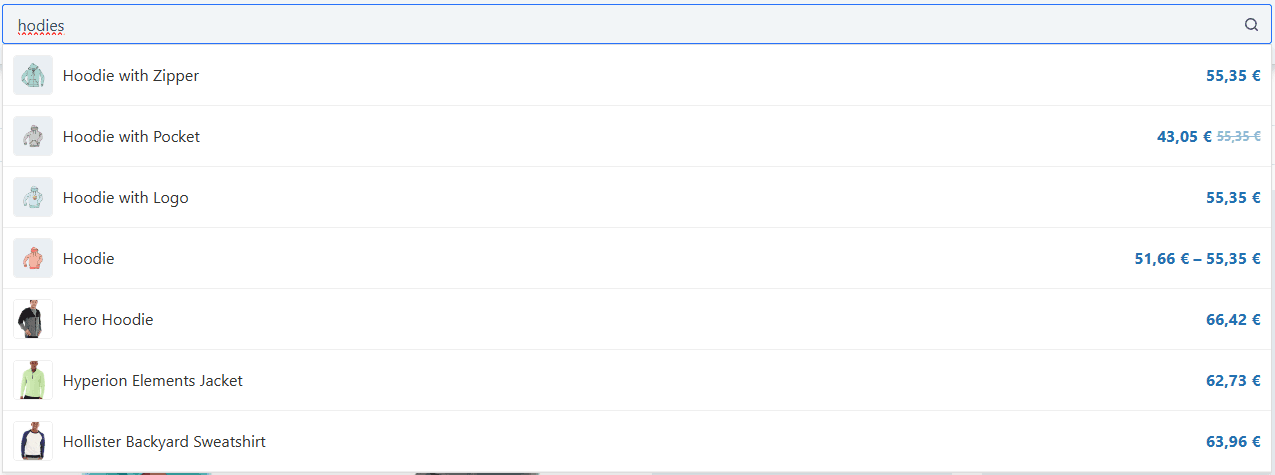
The sensitivity of Smart Search can be fine-tuned as needed.
IMAGE
Here is an option to set the display of search results.
View product images - in the search there is an option to turn on/off the display of the image before the product name
View “Matching: ... - here is an option to show a match if the displayed result is found in SKU, property, tag..
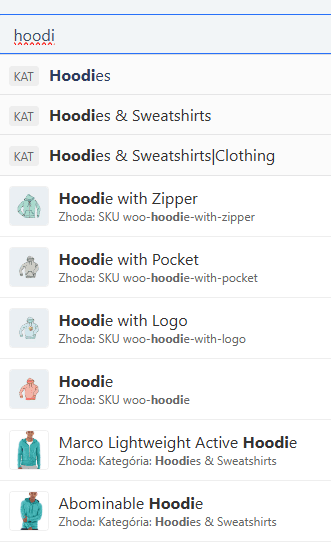
WHAT ALL TO INDEX?
Select the indexing range. Based on the selected options, the search will be performed.
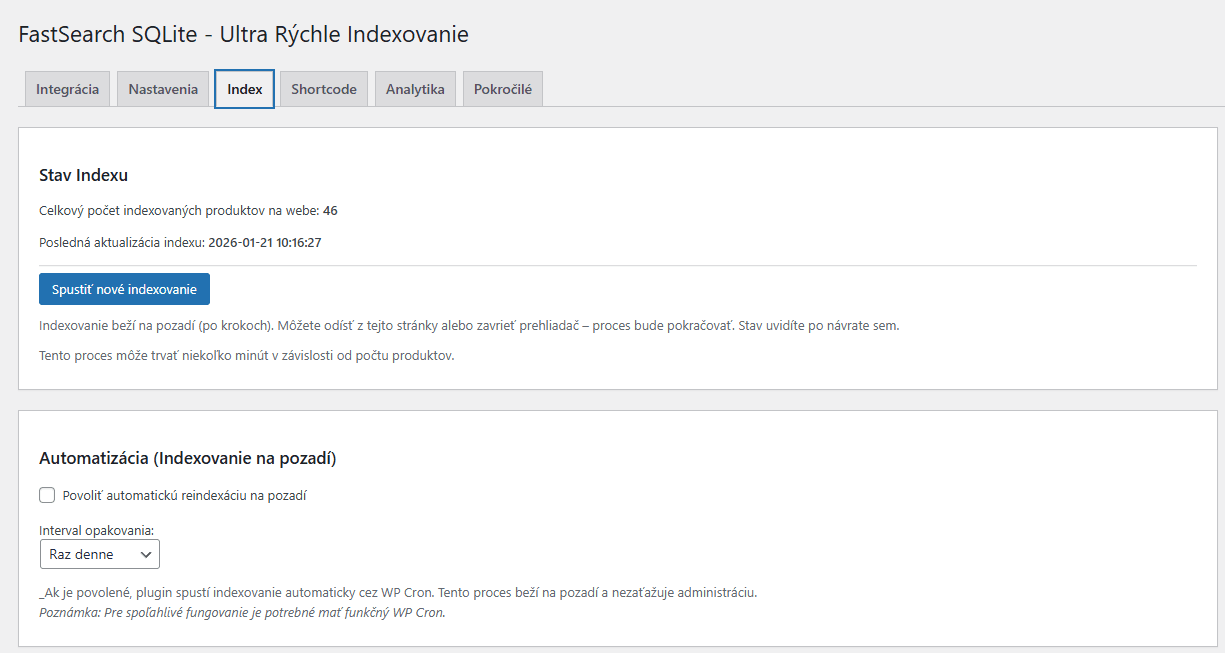
Reindexing is required for every change in this section! The program will alert you to this need.
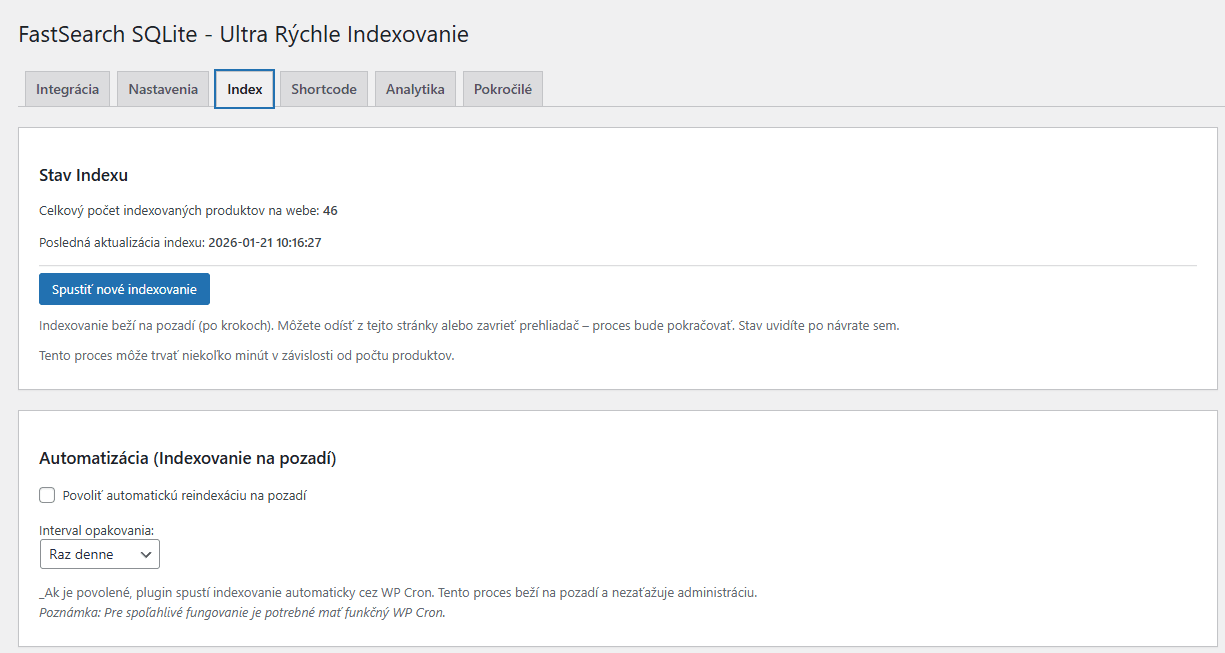
INDEX
SHORT CODE / SHORTCODE
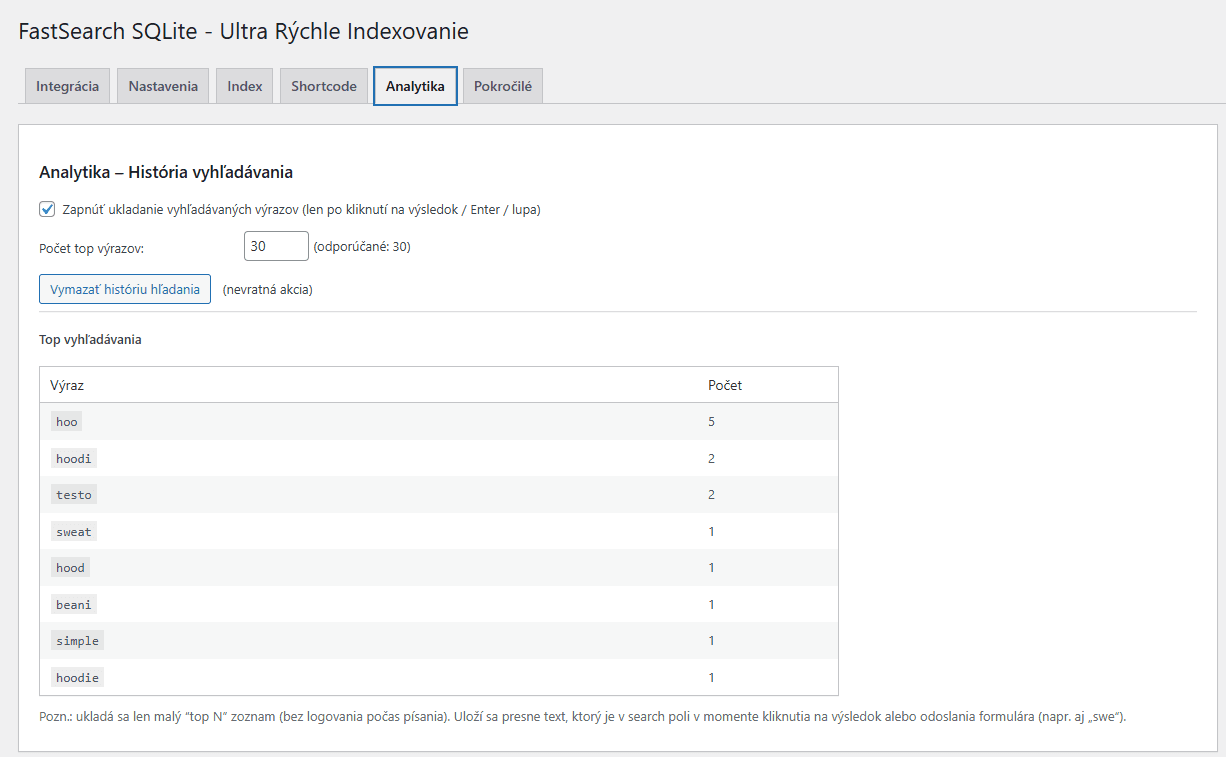
ANALYTICS
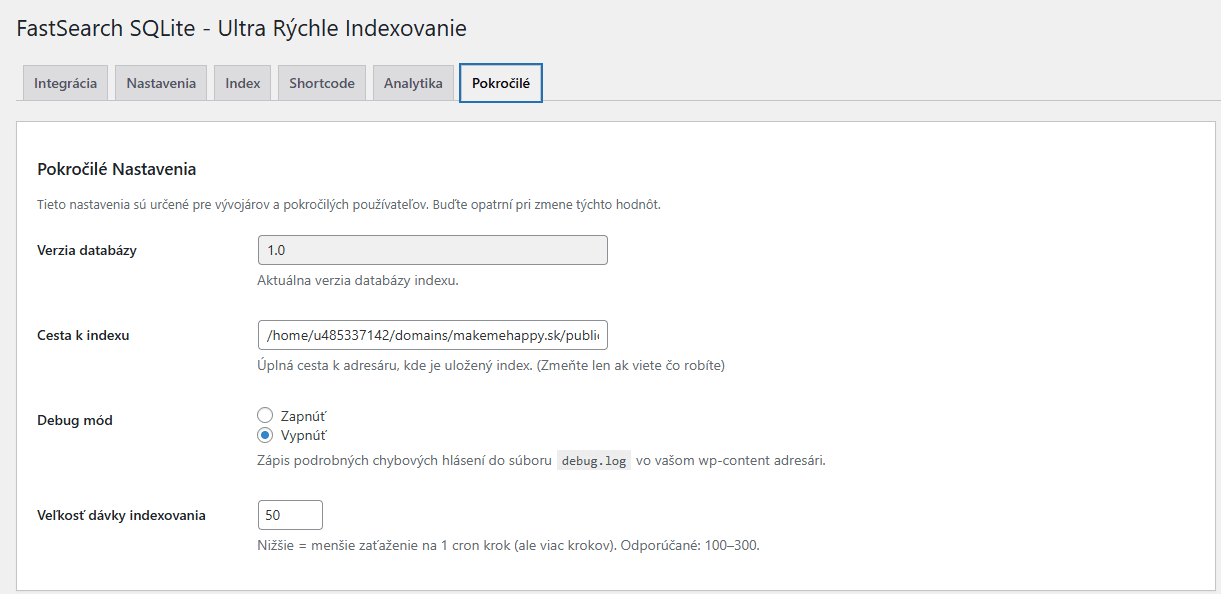
ADVANCED