




This plugin adds a full-featured and secure customer withdrawal system to your WooCommerce store.
1. Installation
- Download the plugin installation file.
- Upload folder
woocommerce-indentation-formalto the folderwp-content/plugins/on your server, or upload the .zip file directly via the WordPress administration (Plugins > Add New). - Activate the plugin in the WordPress administration.


2. Basic form setup and insertion
The basis of operation is placing the shortcode on a dedicated page.
- Create a new page in WordPresse (for example, titled „Withdrawal“).
- Insert the shortcode into the page content:
[withdrawal_formal] - Publish the page.

3. Configuration (Admin Settings)
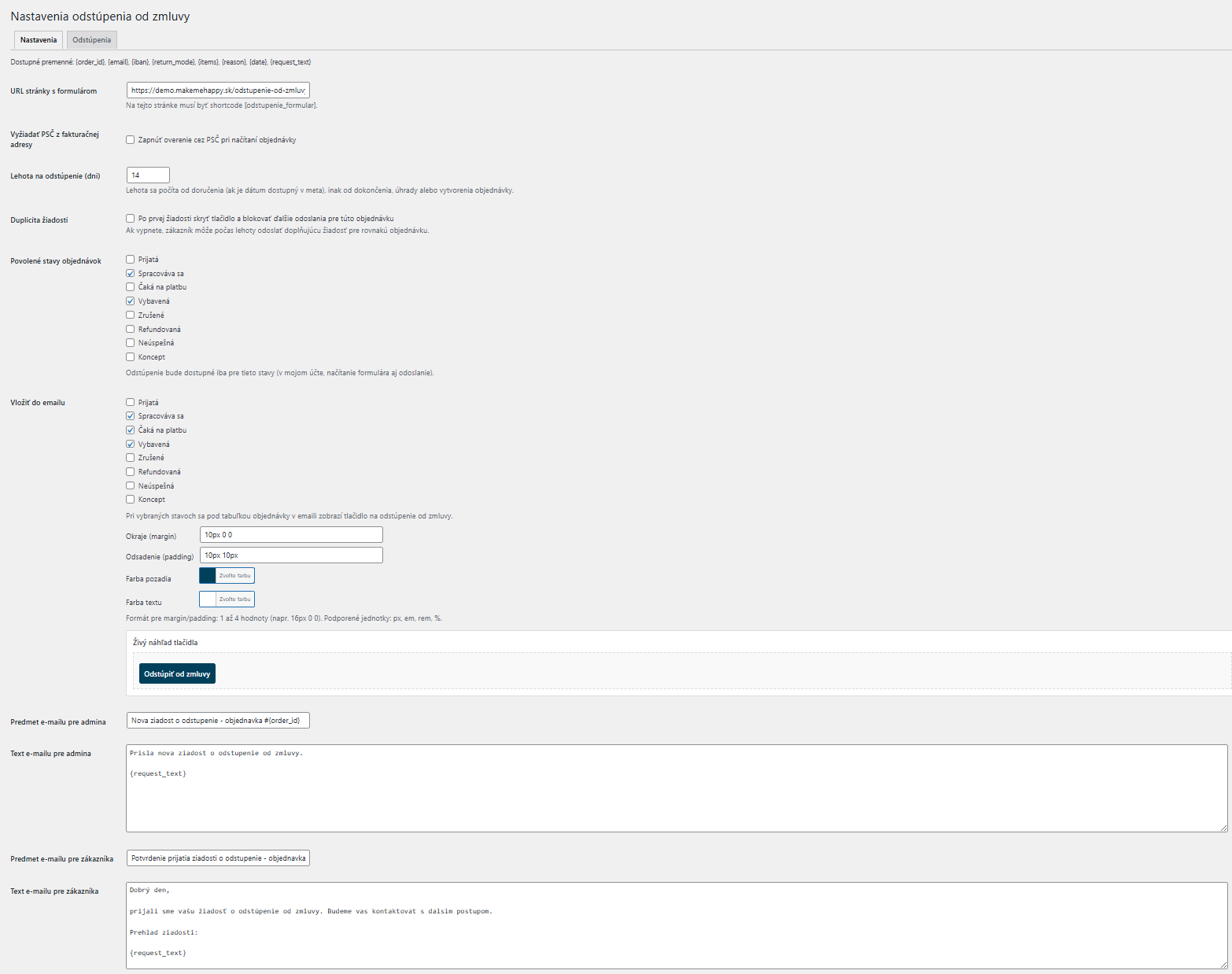
All settings can be found in the WordPress administration menu WooCommerce -> Withdrawal. The administration interface is divided into two tabs: Settings a Withdrawals (list of applications received).
On the cards Settings you can customize:
- URL of the form page: Enter the URL of the page you created in the previous step.
- Request zip code: Enable additional customer verification via zip code from the billing address. (Recommended for security reasons).
- Withdrawal period: The number of days (normally 14) during which the customer has the right to return the goods. The time is calculated from the date of delivery (if recorded), otherwise from the completion of the order.
- Duplication of requests: If this option is enabled, the customer will not be able to send multiple requests for the same order.
- Allowed order statuses: Select the states (e.g. In Progress, Completed) for which the withdrawal will be allowed at all. If the order has a different status, the form will not load and the button will not appear.
- Insert in email: Select the statuses (e.g., Processing, Completed) for which the button will be inserted in the email below the table. If the order has a different status, the button is not inserted.
- Email templates: Here you can customize the subject and text of automated emails for both the admin and the customer.
- Available variables:
{order_id}, {email}, {iban}, {return_mode}, {items}, {reason}, {date}, {request_text}
- Available variables:
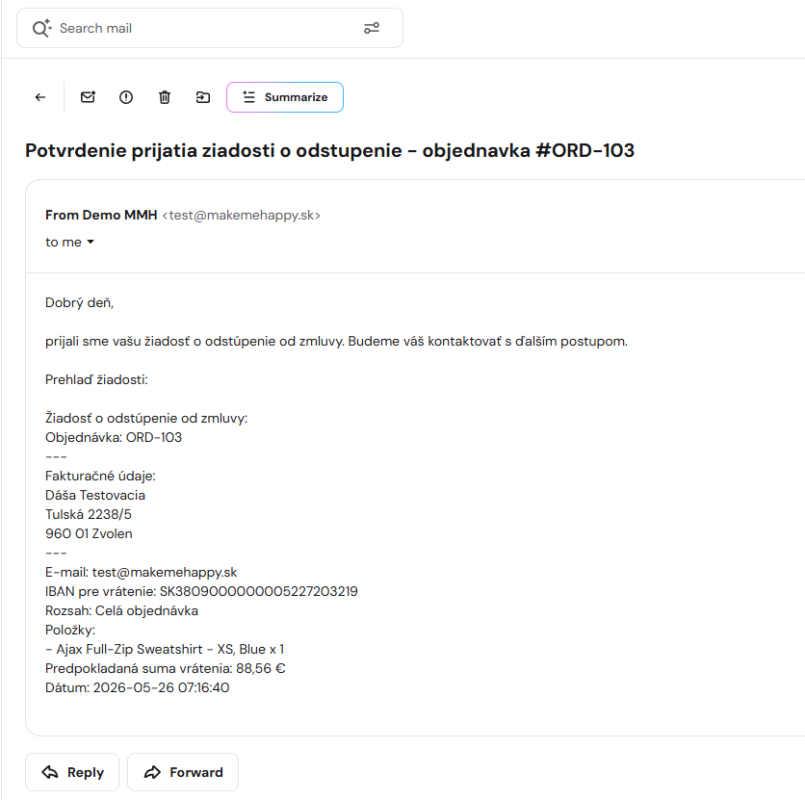
Email confirmation for the customer
4. How it works from the customer's point of view
The customer has two options to access the form:
A. Directly via the form page:
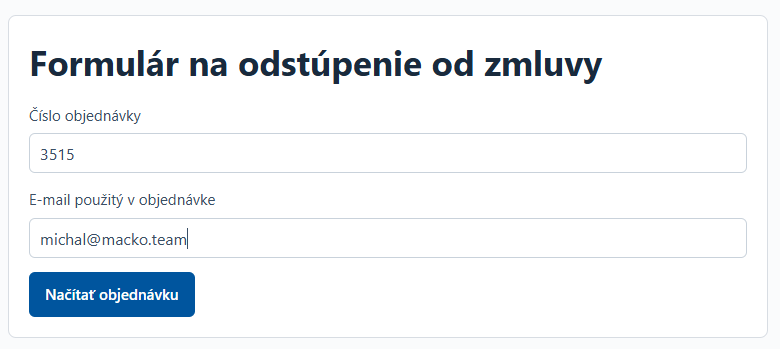
- The customer enters the order number, their email and zip code.
- The plugin verifies the data, order status and validity of the deadline in the background. (The system includes a rate-limit against guessing data).
- If everything is OK, a selection of items will be displayed. The customer can choose to return the entire order or check out only specific products and their quantities.
- For selected payment methods, the form will request the IBAN for the refund.
- Once sent, the system will recalculate the estimated refund amount.

B. Through the client area (My Account): In the order list (/my-account/orders/), a button will automatically appear for eligible orders „Withdraw from the contract“. For security reasons, the link in the button is protected by a cryptographic token, so no email or sensitive order key. Once clicked, the customer is redirected to a form that is already pre-populated and ready for selecting items to return.

5. Management of requests (Withdrawals)
After the customer submits the form, two things happen:
- Both you and the customer will receive a confirmation email with the details of the request.
- The request is saved in the system and assigned as a note to the order.
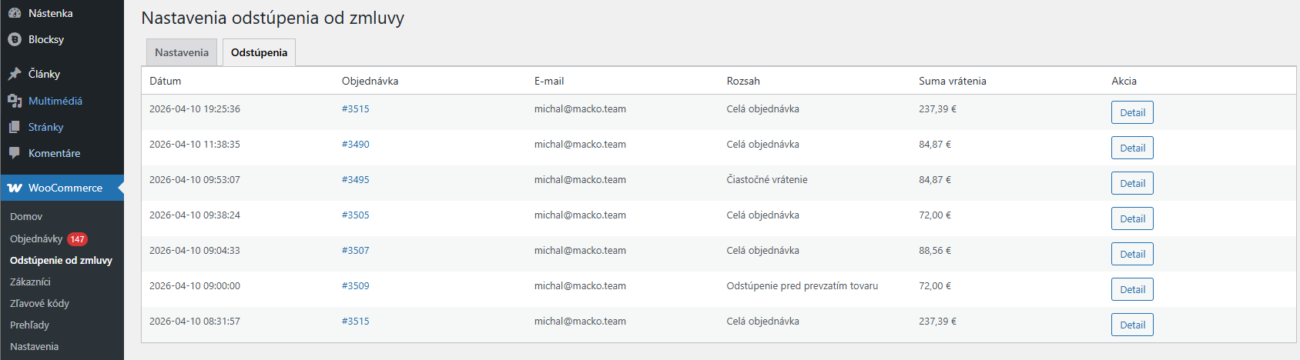
You can view all received applications at any time in the administration tab Withdrawals (WooCommerce -> Withdrawal -> Withdrawals). From this list, you can quickly click directly to the details of a specific order.
6. For developers: integration into emails and templates
If you are using external email plugins or customizing custom templates, you can generate a link to a secure form for a specific order in two ways:
Using the PHP helper function:
wco_get_withdrawal_url($order_id)
Using Shortcode (within other plugins if they support shortcode processing):
[withdrawal_link order_id="123" label="Withdraw"]
Localization note: The plugin is fully ready for translation, by default it includes Slovak (en_SK) and Czech (en_CZ) the location in the folder languages/.
7. Support for custom order numbering
The plugin also supports custom order numbering.