





Happy Email for WooCommerce
HAPPY Email plugin documentation for WooCommerce
In the following steps, we'll walk you through the process of installing and setting up the plugin so you can get it up and running quickly and easily.
After purchasing the plugin, you will receive an email. The mail contains the registration number and the plugin
happy-email.zip
The plugin is not unpacked and remains in ZIP format.

INSTALLATION
A detailed description of how to install the plugin is also described with images this article.
REGISTER
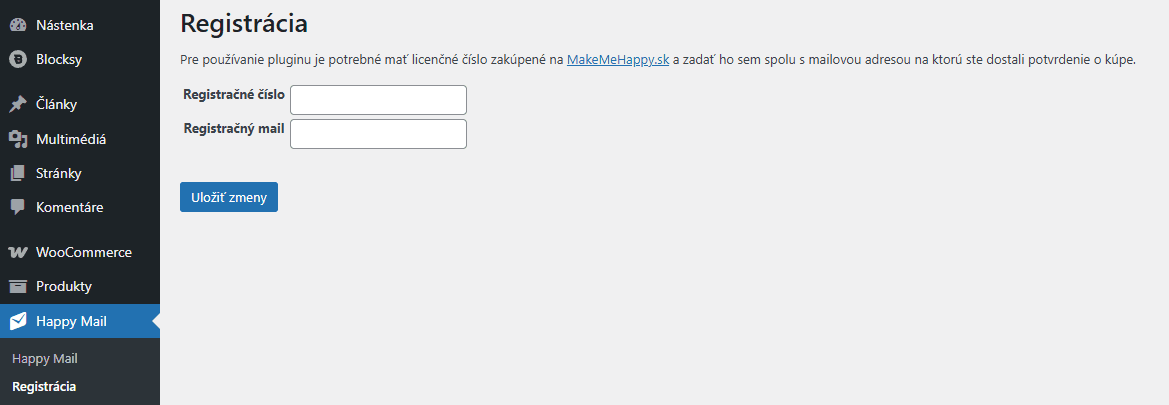
In the confirmation email you received you will find your registration details - license key + license email. These data must be entered after clicking on the Happy Mail > Registration plugin.
FEATURES
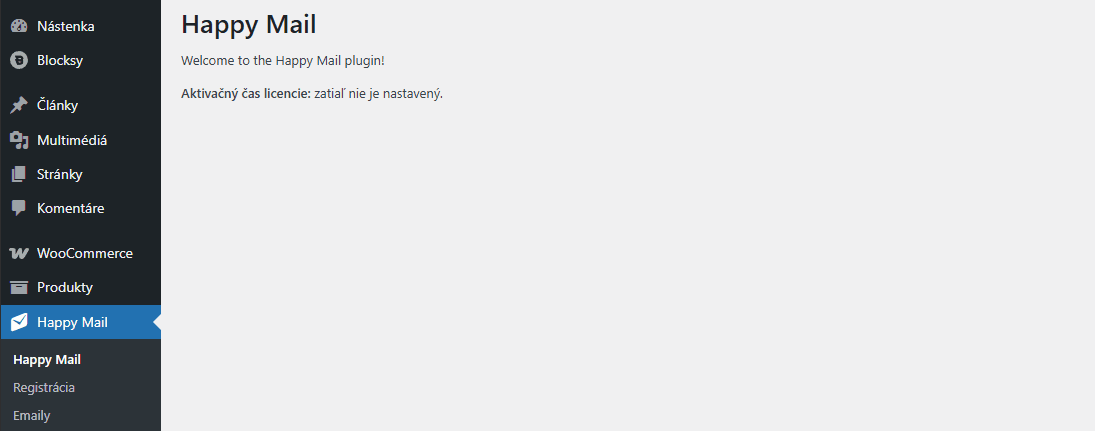
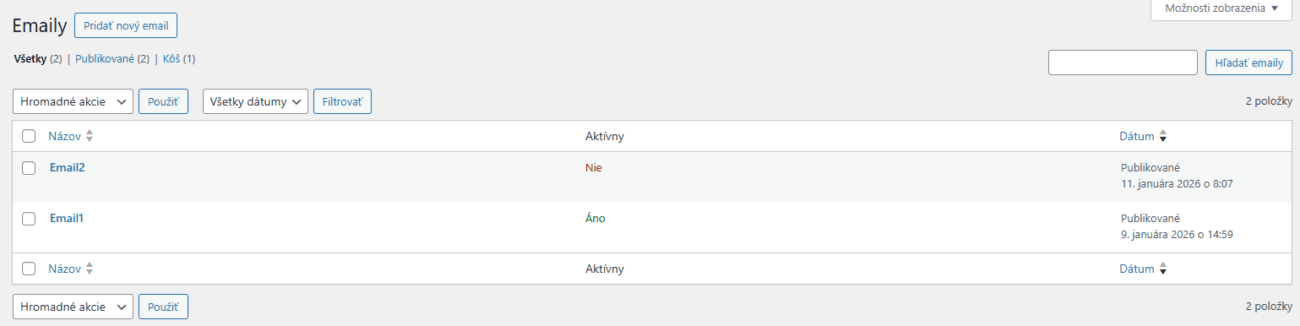
A new email is created via the plugin after the license is activated. Happy Mail > Emails > Add new email
Content of the email

Email subject: will be used as the subject of the email
Sender's name: the customer will see this as the sender's name
Sender's email: the email will be sent from this email address. We recommend using a plugin for SMTP connection - for example the free FluentSMTP.
Test email: you can enter an email address for testing, if left blank send a test email to the admin's email. You must save the data (on the right side with the Publish/Update button) before submitting.
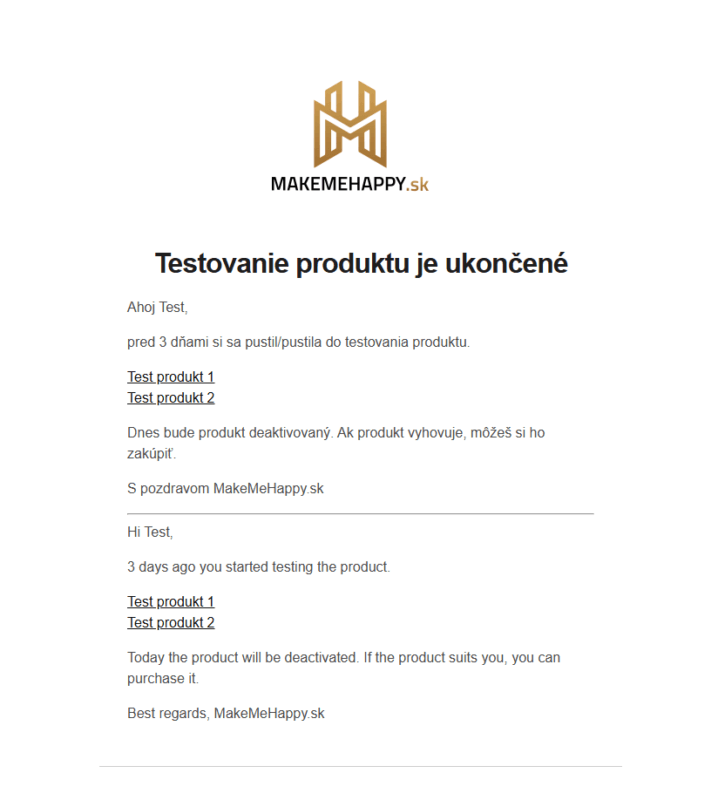
The content of the sent message is filled in the text field. It is also possible to use placeholders that will be used from the specific order to which this email will be sent.
{first_name}
{last_name}
{order_number}
{order_total}
{purchased_date}
{coupon_code}
{payment_method}
{shipping_method}
{my_account_url}
{purchased_items}
{purchased_items_review}
Terms of sending an email
The email will be sent when the conditions in this window are met.

Specific products: If you want to send an email for a specific product, search for it in the window and select it.
If you use product variants, you can select a parent product or a specific variant.
If the field is left blank the condition is met for all products.
Product categories: If you want to send an email for a specific category, search for it in the window and select it.
If the field is left blank the condition is met for all categories.
Min. order price: enter a rule for the minimum price of the total order.
Max. order price: enter a rule for the maximum price of the order. If left blank, the maximum price has no ceiling and applies to all prices.
Coupon was used: email send only if a coupon was used in the order. If it was not used it will not be sent.
It is also possible to specify a specific coupon, if left blank any coupon will be accepted.

Payment methods: You can select for which payment used for the order the email will be sent.
If the field is left blank the condition is met for all payment methods.
Method of transport: You can select for which shipping method for the order the email will be sent.
If the field is left blank the condition is met for all transport methods.
Billing countries: You can select for which customer country in the order the email will be sent.
If the field is left blank the condition is met for all countries.
Order status at which to ship: You can select at which order status the email will be sent.
If the field is left blank the condition is met when the order is created.
When to send the email: Here you can schedule a message to be sent. If it is sent immediately, the email is sent with a delay of about 3seconds. If you schedule it, the email is sent with the delay you enter in the days and hours fields.
Coupon when sending an email
You can generate a coupon with the rules you enter to the email you send to the customer. To generate a coupon you need to check the box Generate a coupon when sending an email?

Email attachment
You can attach a file to be sent as an attachment in an email.
There is also an option to attach / not attach an attachment which is inserted via the woocommerce_email_attachments hook. This means for example if you are generating a PDF with an invoice that is inserted via the woocommerce_email_attachments hook, there is an option to either attach or not attach it to a specific email.

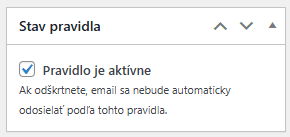
Activation / deactivation of email
Each created email can be easily activated/deactivated without having to delete it.
Sending an email requesting a product review
Since version 1.0.3, the {purchased_items_review} placeholder has been added, which adds the ability to insert a product that has been purchased into an email with a link directly to the review tab. After the product link, #tab-reviews is added which redirects and scrolls the page directly to the redirect.
Here is an example of a link to such a product