




Installation
A detailed description of how to install the plugin is also described with images this article.
Settings
Once activated, the plugin administration is located in the woocommerce settings, specifically Woocommerce > Settings
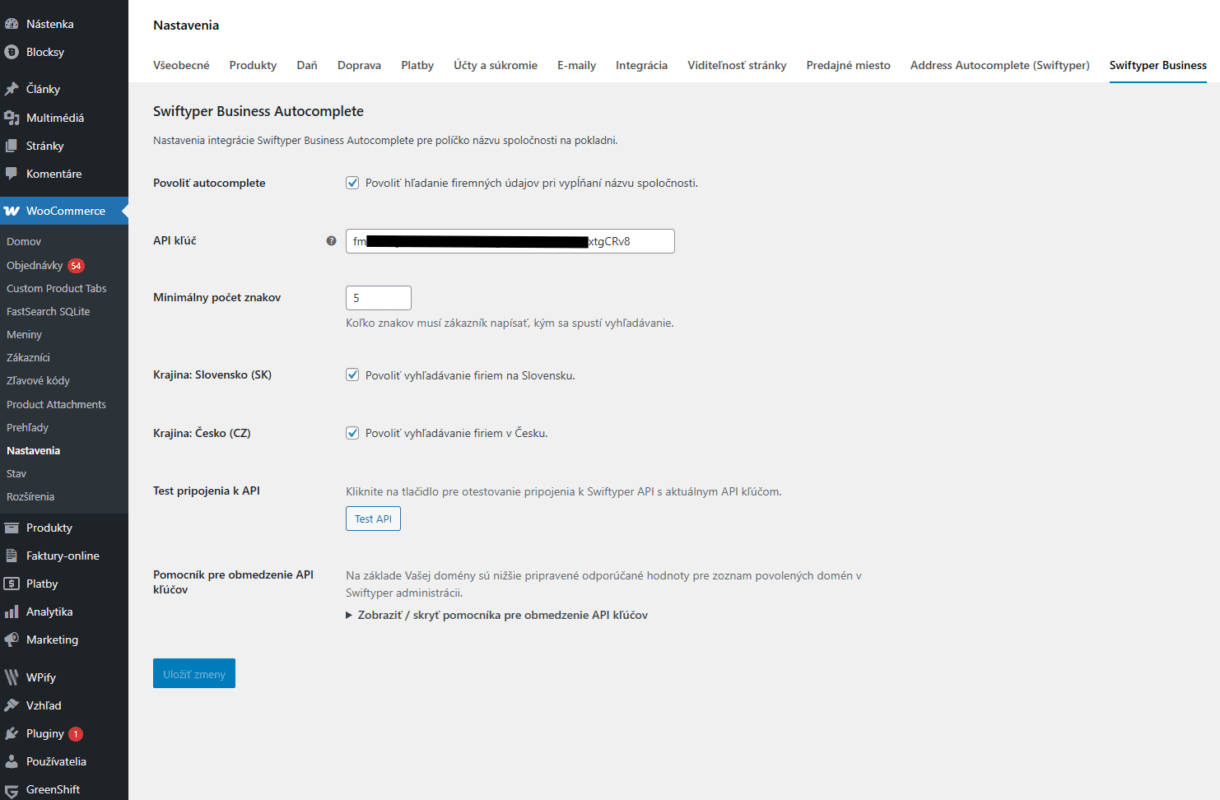
Now you need to add the API key from your account Swiftyper.
API keys can also be used in the free plan. Here you have 1000 API calls.
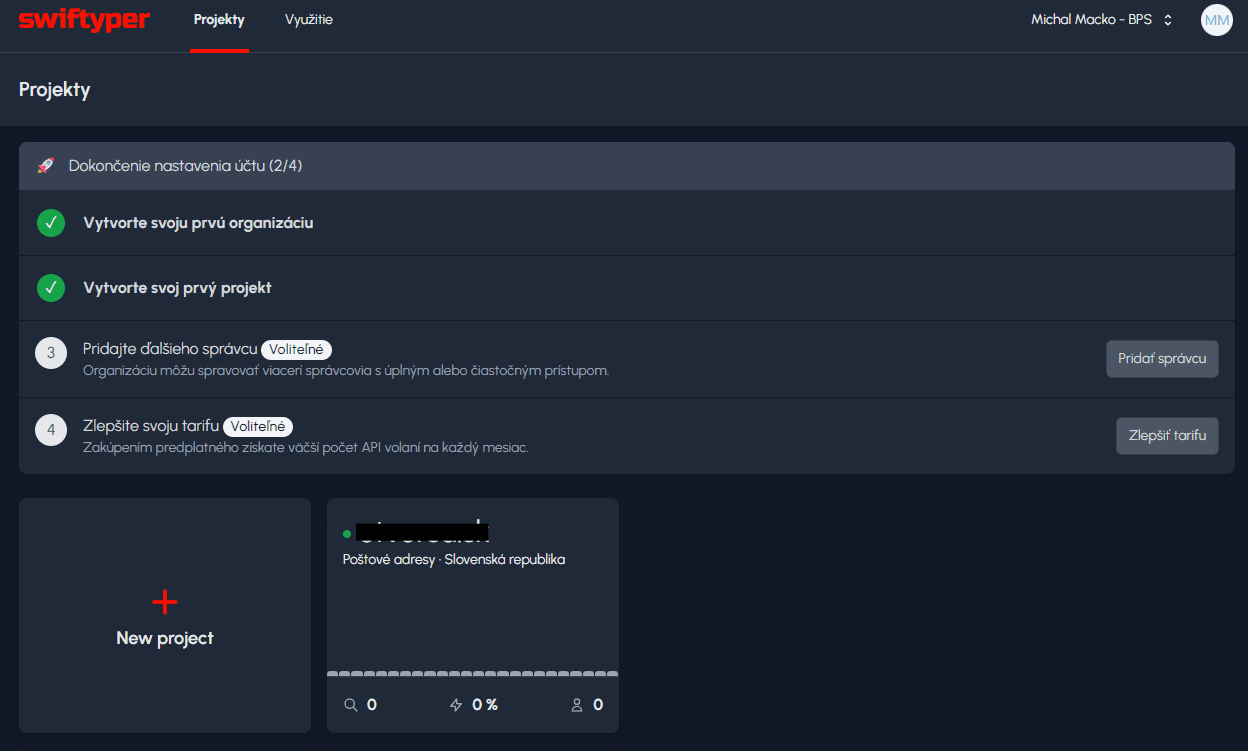
Click on New project
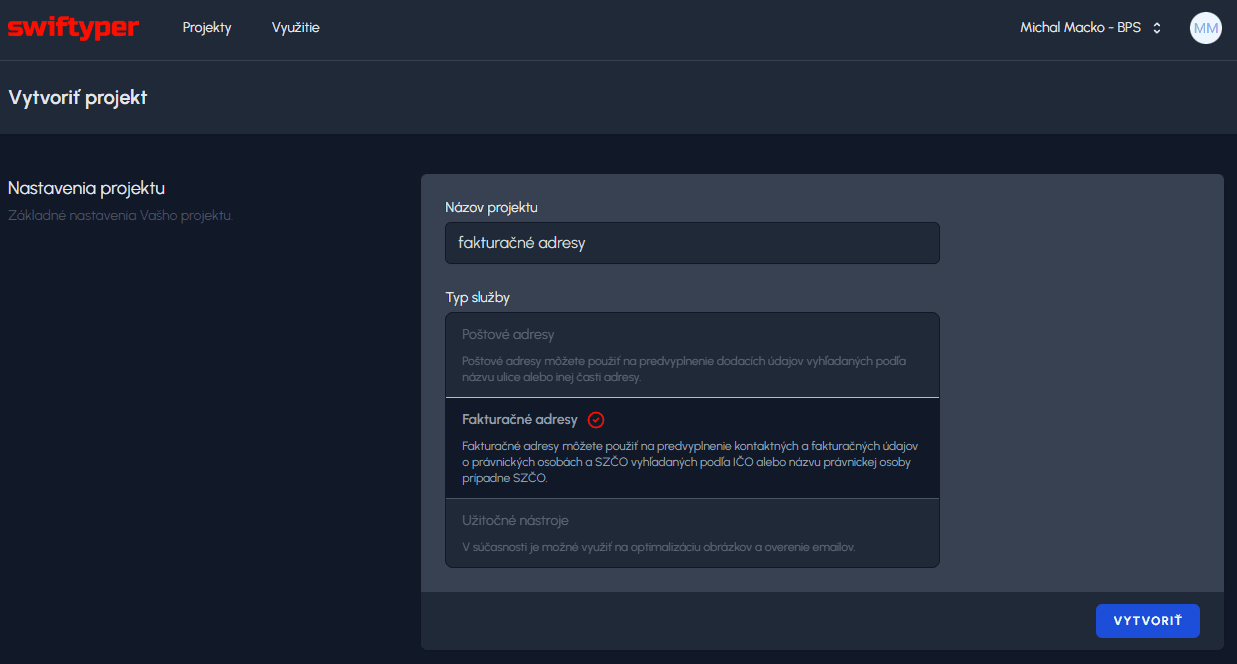
You enter any name and select the type of service Invoicing addresses
Here you already have the API key which you need to copy into the plugin and save the changes.
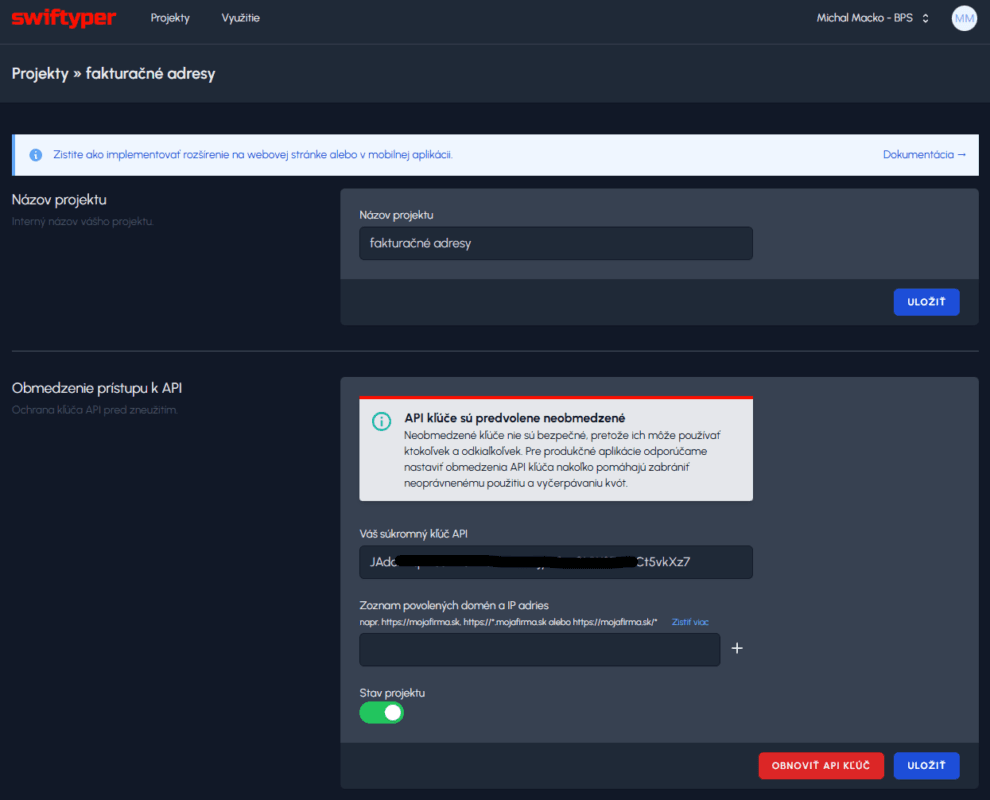
You can add the address of the e-shop to the list of allowed addresses to prevent unauthorized abuse of the API. I recommend selecting a few relevant addresses. The whisperer is also in the plugin at the bottom Hint: API Key Restriction (allowed domains).
After saving and setting the allowed addresses, I recommend to test by clicking on TEST API KEY.
After successful connection the answer is 200 (green)
After a failed 4xx (red), the correct allowed address still needs to be added
Next, choose where the autocomplete addresses will work. Whether for billing or shipping data.
Minimum number of characters. Here you need to think about how much is necessary for you. Each click above the minimum number triggers an API call, so if you have a minimum of 3, then if the customer types 5 characters before making their selection, 3 API calls will be made.